
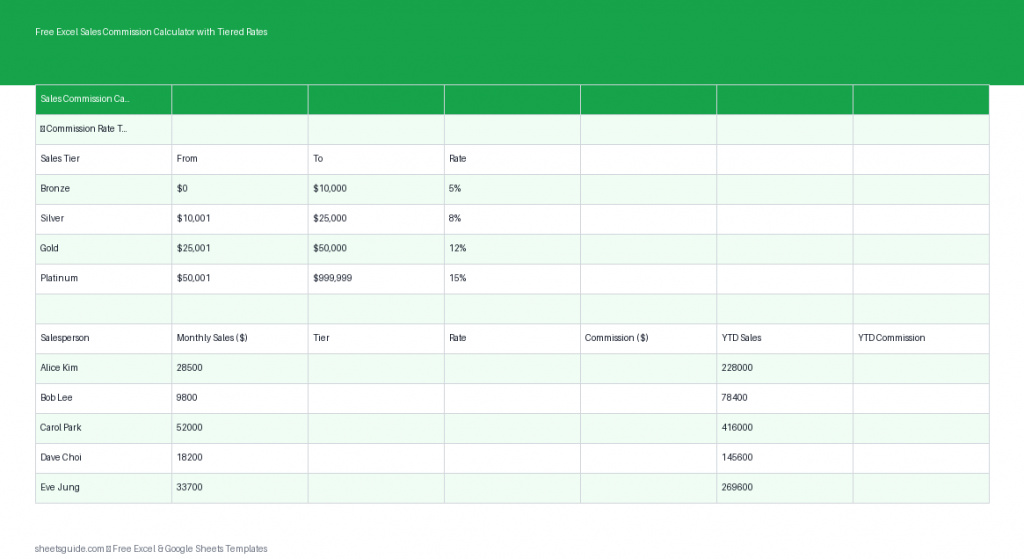
Managing sales commissions can quickly become complicated—especially when your compensation plan includes tiered rates. Instead of manually calculating commissions or double-checking formulas, this free Excel template simplifies the entire process. It automatically calculates commissions based on tiered structures using nested IF formulas, helping you stay accurate, consistent, and efficient.
Built for Excel but fully compatible with Google Sheets, this template is ideal for sales managers, small business owners, and independent sales professionals who want a clear and reliable way to track earnings.
What This Excel Template Does
This Excel template is designed to handle tiered commission structures where different portions of sales are paid at different rates. Instead of calculating each level manually, the template assigns a tier, applies the correct rate, and calculates the commission instantly.
Each row represents a transaction or reporting period for a salesperson, with built-in formulas that automate the process from start to finish.
Included Columns
- Salesperson – Name of the individual earning commission
- Sales Amount – Total value of sales for the period
- Tier – Automatically or manually assigned based on thresholds
- Rate – Commission percentage tied to the tier
- Commission – Calculated payout based on sales and rate
- YTD Total – Running year-to-date commission earnings
Why Use a Tiered Commission Structure?
Tiered commissions are commonly used to motivate performance. As sales increase, the commission rate improves, rewarding higher output. However, calculating these structures manually can be time-consuming and error-prone.
This Excel template removes that complexity by embedding logic directly into the spreadsheet. With nested IF formulas, it automatically determines which tier applies and calculates the correct commission.
Example Tier Structure
- 0–$5,000: 5% commission
- $5,001–$10,000: 7% commission
- $10,001+: 10% commission
The template can easily be customized to match your specific compensation plan.
Key Benefits of This Excel Template
- Automated calculations reduce manual errors
- Flexible tier logic adapts to your commission structure
- Real-time updates as you enter sales data
- YTD tracking provides a clear view of cumulative earnings
- Works in Excel and Google Sheets for accessibility across platforms
How the Tiered Calculation Works
The core of this template is a nested IF formula that evaluates the sales amount and assigns the correct commission rate. For example:
=IF(B2<=5000, 0.05, IF(B2<=10000, 0.07, 0.10))
This formula checks the sales amount in sequence and applies the appropriate rate based on thresholds. The commission is then calculated by multiplying the sales amount by the assigned rate.
You can adjust these thresholds and percentages to reflect your own compensation rules.
How to Use in Excel
- Download and open the Excel template in Microsoft Excel.
- Enter salesperson names in the Salesperson column.
- Input sales amounts for each entry.
- Review tier assignments if they are automated, or adjust if needed.
- Verify commission rates align with your plan.
- Check calculated commissions to ensure accuracy.
- Track YTD totals to monitor cumulative performance.
The formulas are pre-built, so most of your work involves entering data and reviewing results. If your commission structure changes, simply update the nested IF formula or rate values.
Customizing the Excel Template
Every sales organization is different, and this template is designed to be flexible.
Adjust Commission Tiers
You can modify thresholds and rates directly in the formula. For more advanced setups, you can replace nested IF formulas with lookup tables using VLOOKUP or XLOOKUP.
Add More Columns
If needed, you can expand the template to include:
- Region or territory
- Product category
- Monthly or quarterly breakdowns
Incorporate Bonuses
You can add bonus calculations for hitting targets or exceeding quotas by inserting additional formulas.
Best Practices for Managing Commissions
To get the most out of this Excel template, follow these practical tips:
- Standardize data entry to avoid inconsistencies
- Review formulas periodically to ensure accuracy
- Keep a backup copy before making major changes
- Use filters and sorting to analyze performance
- Audit totals regularly to catch discrepancies early
Consistency is key when managing financial data, and this template helps enforce a structured approach.
Who Should Use This Template?
This Excel template is useful for:
- Sales managers tracking team commissions
- Small business owners managing payouts
- Freelancers or independent sales agents
- Finance teams auditing commission calculations
Whether you have a small team or a growing sales organization, this template provides a reliable foundation.
Excel and Google Sheets Compatibility
This is an Excel template designed for Microsoft Excel, but it also works smoothly in Google Sheets. You can upload the file to Google Sheets and use the same formulas and structure without losing functionality.
This flexibility makes it easy to collaborate, share, and access your data from anywhere.
Final Thoughts
Calculating tiered commissions doesn’t have to be complicated. With this free Excel template, you can automate the process, reduce errors, and gain better visibility into sales performance.
By combining structured data, built-in formulas, and customizable features, this template gives you everything you need to manage commissions efficiently in Excel—while still offering the flexibility to work in Google Sheets if needed.
If you regularly handle sales compensation, this tool can save you time and provide confidence that your numbers are accurate every time.