
Staying on top of tasks can quickly become overwhelming, especially when you’re juggling deadlines, priorities, and multiple people. That’s where a simple, structured system makes all the difference. This free Excel template is designed to help you manage tasks efficiently, whether you’re working solo or coordinating a team.
Built in Excel and fully compatible with Google Sheets, this template gives you a clear overview of what needs to be done, who’s responsible, and how far along each task is. No complicated setup, no learning curve—just a clean, practical layout that works.
What This Excel Template Includes
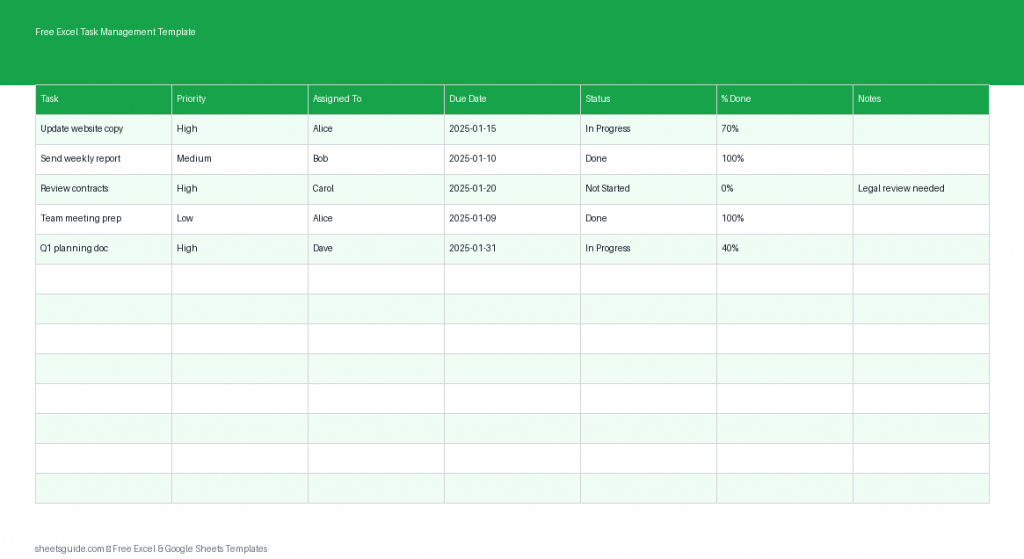
This Excel template uses a straightforward table format with the following columns:
- Task – A clear description of the work to be completed
- Priority – Assign importance levels such as High, Medium, or Low
- Assigned To – The person responsible for completing the task
- Due Date – The deadline for completion
- Status – Track progress (e.g., Not Started, In Progress, Completed)
- % Done – A numeric progress indicator from 0% to 100%
- Notes – Additional context, updates, or instructions
Each column plays a specific role in helping you stay organized and focused. Together, they create a system that is flexible enough for personal use but structured enough for team collaboration.
Why Use This Task Management Excel Template
Many task management tools can feel bloated or overly complex. This Excel template focuses on what actually matters: clarity, accountability, and progress tracking.
Here’s why it works so well:
- Centralized view – See all tasks in one place without switching tools
- Flexible structure – Adapt it to personal tasks, projects, or team workflows
- Easy tracking – Monitor deadlines and completion percentages at a glance
- No learning curve – If you know Excel basics, you’re ready to go
- Cross-platform – Works seamlessly in Excel and Google Sheets
Whether you’re managing a project, organizing your weekly to-do list, or coordinating a team, this template keeps everything simple and actionable.
Best Ways to Use This Template
This Excel template is highly versatile. Here are some practical ways you can use it:
1. Personal Task Management
Use it as your daily or weekly planner. Add tasks, assign priorities, and track your progress throughout the day. The % Done column helps you stay motivated and focused.
2. Team Collaboration
If you’re working with a team, assign tasks to different members and monitor progress in real time. Everyone knows what they’re responsible for and when it’s due.
3. Project Tracking
Break larger projects into smaller tasks. Assign deadlines and track completion percentages to keep the entire project on schedule.
4. Freelance or Client Work
Track deliverables, deadlines, and client-specific notes. This helps you stay organized across multiple clients and projects.
5. Household or Family Planning
Even outside of work, this template can help manage chores, events, or shared responsibilities among family members.
How to Use in Excel
Getting started with this Excel template is quick and straightforward. Follow these steps:
- Download and open the file
Open the Excel template in Microsoft Excel on your computer. - Enter your tasks
Start by listing all tasks in the Task column. Be specific so each item is clear and actionable. - Set priorities
Use the Priority column to highlight what matters most. You can standardize values like High, Medium, and Low. - Assign responsibility
Fill in the Assigned To column to clarify ownership. This is especially useful for teams. - Add due dates
Use the Due Date column to set deadlines. Excel’s date formatting helps keep everything consistent. - Update status regularly
Track progress using the Status column. Common statuses include Not Started, In Progress, and Completed. - Track progress percentage
Use the % Done column to indicate how far along each task is. This gives a more detailed view than status alone. - Use notes for context
Add important details, links, or updates in the Notes column. - Sort and filter
Use Excel’s built-in filters to view tasks by priority, assigned person, or status. This makes it easier to focus on what matters.
This same Excel template can also be uploaded to Google Sheets for easy sharing and collaboration, making it ideal for remote teams or multi-device access.
Tips to Get the Most Out of This Template
To maximize the value of this Excel template, consider these practical tips:
- Keep tasks small and specific – Break large tasks into manageable steps
- Update daily – A quick daily review keeps everything accurate
- Use consistent labels – Standardize your priority and status values
- Review deadlines regularly – Adjust due dates as priorities shift
- Highlight overdue tasks – Use Excel formatting to make them stand out
Consistency is key. The more regularly you update the template, the more useful it becomes.
Who This Excel Template Is For
This template is designed for anyone who needs a clear, no-fuss way to manage tasks:
- Individuals looking to stay organized
- Project managers tracking deliverables
- Small teams coordinating work
- Freelancers managing multiple clients
- Students organizing assignments and deadlines
If you’ve ever felt overwhelmed by scattered to-do lists or missed deadlines, this Excel template offers a reliable system you can trust.
Simple, Effective Task Management
Task management doesn’t need to be complicated. With the right structure, you can stay focused, meet deadlines, and keep everything under control.
This free Excel template gives you exactly what you need: clarity, flexibility, and ease of use. Whether you’re planning your day or managing a full project, it helps you stay organized and productive without extra complexity.
Download the template, customize it to your needs, and start managing your tasks with confidence.