
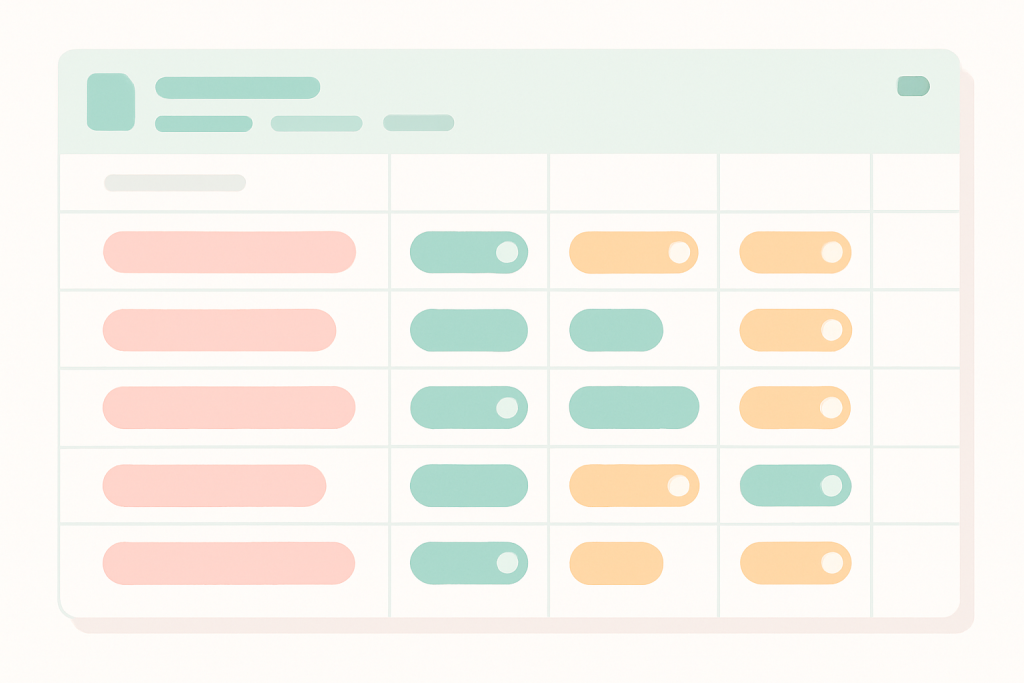
Open any tracker that was built before 2023 and the status column looks the same: lowercase text, three different spellings of “in progress”, a few rogue cells that someone forgot to validate. Dropdown chips fix that column on sight. They are the colored pills you have probably seen in someone else’s sheet — a single click, a fixed set of values, a chip that actually reads like a UI element instead of plain text. The mechanics underneath are still data validation; the surface is what changed.
What a dropdown chip actually is
A dropdown chip is a cell whose value comes from a fixed list of options, rendered as a rounded pill with its own color. Google rolled the feature out on December 8, 2022, alongside a refresh of the data validation sidebar that now lives at Data → Data validation. The pill is the visual; the rule behind it is still a data validation rule of criterion type Dropdown. Edit the cell, the chip becomes the dropdown menu. Click off, it snaps back into a chip.
“Smart chip” is the umbrella term. Dropdowns are one flavor. The others are people, file, calendar event, place, finance, rating, and YouTube chips — separate entities, separate menus, but all summoned the same way: type @ in a cell and the picker appears.
Data validation sidebar.
That single point clears up most of the confusion online: there is no separate “chip engine” to learn. If you already know how to write a data validation rule, you already know how to ship a dropdown chip — you just pick a color per option, and Sheets handles the rest. The deeper guide on how Google Sheets data validation works covers the rule mechanics; this article is about the chip surface that sits on top.
Three ways to add a dropdown chip
The fastest path depends on what is already on screen. If you are typing into an empty cell, the @ menu is one keystroke away. If you have the menu bar open, Insert → Dropdown takes you straight to the sidebar. If you are reviewing a teammate’s sheet, the right-click menu hides the same shortcut. All three end in the same place: the data validation sidebar with criterion preset to Dropdown.
- Select the target cell or range. Multi-cell selection works — the rule applies to every cell.
- Open the sidebar with
Insert → Dropdown, or right-click and choose Dropdown, or type@and pick Dropdowns from the picker. - Type each option in the Option rows. Click the round swatch left of each row to pick a color.
- Decide what happens on invalid input: Show a warning keeps the typed value but flags it; Reject the input refuses to write the cell at all.
- Click Done. The chips render immediately.
One detail buried in the sidebar: the Advanced options drawer controls how the chip looks when the cell is empty. Chip renders a thin outlined placeholder; Arrow shows a small triangle in the corner; Plain text kills the chip and shows the value as-is. Choose Chip for status columns, Arrow for sparse columns where most cells stay blank.
Color-code the values so the column scans
Colors are the reason chips beat plain validation lists. A team lead skimming a 200-row backlog needs to spot the red Blocked rows in one glance, not read every line. Pick colors the way a traffic light works: green for done or healthy, amber for in-flight or at-risk, red for blocked or failed, gray for cold or archived. Resist the urge to give every option its own custom hue — six distinct chip colors in one column is already too many.
Below is a small task tracker where the Status column in column C is a dropdown chip, and the Owner column in column D is a people chip. Both render as pills in the live sheet:
| A | B | C | D | |
|---|---|---|---|---|
| 1 | Task | Due | Status | Owner |
| 2 | Draft brief | 2026-06-20 | Done | @Amy |
| 3 | Send invoices | 2026-06-22 | In progress | @Ben |
| 4 | QA staging | 2026-06-25 | Blocked | @Chi |
Once the chips are colored, the column becomes a count target. A simple summary at the top of the sheet turns the pills into a number:
=COUNTIF(C2:C, "Blocked")That counts every row whose status pill resolves to Blocked. The chip is still a text value under the surface, which is why every text function — COUNTIF, FILTER, QUERY — works on it without translation. If you also want the row itself to flush red, layer a conditional formatting rule with the same condition; the chip color and the row color stay in sync because both watch the same value.
Convert a whole column with one click
The original 2022 release made you add chips one cell at a time. The May 2024 update added a bulk path: if a column already holds repeating values, Sheets offers a one-click conversion in the right-click menu and in the contextual smart suggestions box. Per Google’s May 7, 2024 Workspace announcement, the suggestion appears when Sheets detects that a range has a small fixed vocabulary — typically fewer than 20 distinct values.
Open a fresh sidebar
Type each option
Pick each color
Paste the range
Five minutes per column on a wide tracker.
Select the column
Right-click → Convert to dropdown chip
Adjust colors once
Done
Ten seconds. Colors default to Sheets’ palette.
The bulk converter is also a cleanup tool. It surfaces every unique value in the range — including the spelling variants you did not know were there. If a sheet has In Progress, in progress, and InProgress, the converter shows three chip rows, and you can merge them by editing the option list afterward. That alone is worth running it across an old tracker.
If the suggestion never appears, the range probably has too many distinct values for Sheets to treat as categorical. Either the column is open-ended text — a notes column, say — or someone has been typing free-form into a column that was meant to be controlled. In the second case, the fix is to normalize the values first with =TRIM(PROPER(C2)), then run the converter.
People, dates, finance, and file chips
Dropdown chips are the most useful chip type, but they are not the only one. Four more chip types sit one keystroke away and each one solves a specific recurring problem:
| Chip | Trigger | Best for |
|---|---|---|
| People | @name |
Owner / reviewer columns; hover shows the contact card |
| Date | @today, @tomorrow, @monday |
Fast date entry without remembering ISO format |
| File | @filename |
Linking a Doc or Slide deck without pasting a URL |
| Finance | @TICKER (e.g. @AAPL) |
Static reference; for live prices use GOOGLEFINANCE |
The finance chip is a common point of confusion. Inserting @AAPL stores a pinned reference to that security; it does not stream the price. For continuously updating prices you still want the function, and the breakdown in pulling live stock prices with GOOGLEFINANCE walks through the syntax. Use chips for the label, formulas for the data.
@today are static — they hold the date you typed, not a moving target. If you want a recalculating today, use the function =TODAY() instead.
When a chip will not render — quick fixes
Chips fail quietly. The cell looks like a chip while you are editing it and then renders as plain text the moment you click away, or the dropdown arrow vanishes entirely. The cause is almost always one of four things, and the checklist below catches them in order of frequency.
- ✓ Display style is set to Plain text in the validation sidebar — switch it to Chip
- ✓ The cell already has a formula in it — chips do not render on formula output, only on typed values
- ✓ The viewer’s account has no edit access — read-only viewers see chips as static text by design
- ✓ The sheet was opened in the mobile app — chip editing is desktop-only, though existing chips still display
For workbooks that need controlled values across hundreds of cells, the sidebar gets tedious. Apps Script gives you the same rule via SpreadsheetApp. The snippet below sets a dropdown rule on C2:C with three options and a reject-on-invalid policy:
function setStatusChips() {
  const sheet = SpreadsheetApp.getActive().getSheetByName('Tasks');
  const range = sheet.getRange('C2:C');
  const rule = SpreadsheetApp.newDataValidation()
    .requireValueInList(['Done', 'In progress', 'Blocked'], true)
    .setAllowInvalid(false)
    .build();
  range.setDataValidation(rule);
}
The chained calls do the obvious things: requireValueInList takes the option array, the trailing true makes Sheets show the dropdown arrow, and setAllowInvalid(false) is the Apps Script equivalent of the sidebar’s Reject the input radio. Run the function once and every cell in the range inherits the rule.
Where to take chips next
Start with the column that hurts most. Pick the status, priority, or stage column in the messiest tracker you own, run Convert to dropdown chips, then spend a minute on the colors. Once one column is chipped, the next one is obvious.
Anything that should have been a list — owners, environments, severity, channel — graduates the same way, and the data behind it stays a plain string that every formula already knows how to read.