
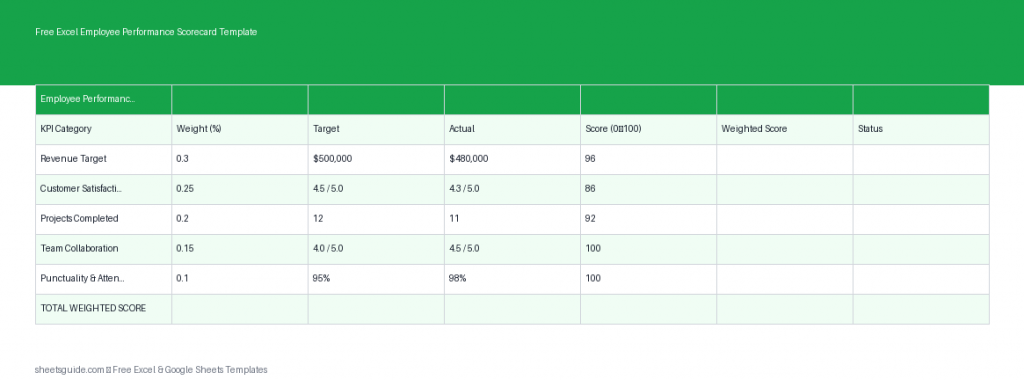
Managing employee performance consistently can be challenging, especially when evaluations rely on subjective judgment or scattered data. This Excel template is designed to bring structure, clarity, and fairness to your performance reviews by combining KPI tracking, weighted scoring, and automatic calculations—all in one place. It works seamlessly in Excel and is also fully compatible with Google Sheets, making it flexible for any team setup.
Whether you’re managing a small team or overseeing multiple departments, this Excel employee performance scorecard template helps you standardize evaluations and make data-driven decisions with confidence.
What This Excel Template Includes
This template is built around a simple but powerful structure. Each column plays a specific role in evaluating performance:
- Employee – Name of the employee being evaluated
- KPI – Key performance indicator (e.g., Sales, Customer Satisfaction)
- Weight – Importance of the KPI (as a percentage or decimal)
- Target – Expected performance level
- Actual – Actual results achieved
- Score – Calculated performance score based on target vs actual
- Weighted Score – Final score after applying KPI weight
The template automatically calculates scores, allowing you to focus on analysis instead of manual computation.
Why Use an Employee Performance Scorecard?
Without a structured system, performance reviews can become inconsistent and difficult to compare. This Excel template solves that by introducing measurable benchmarks and weighted scoring.
Here’s what you gain:
- Consistency – Standardize evaluations across employees and teams
- Transparency – Clearly define how performance is measured
- Objectivity – Reduce bias with data-driven scoring
- Efficiency – Automate calculations and reduce manual work
- Better Decisions – Identify top performers and improvement areas quickly
How Scoring Works
The scoring system in this Excel template is designed to be simple yet flexible. Each KPI is assigned a weight based on its importance. The template then compares the Actual value to the Target to generate a score.
For example:
- If an employee meets the target, they receive a full score
- If they exceed the target, their score increases proportionally
- If they fall short, the score decreases accordingly
The Weighted Score multiplies the KPI score by its assigned weight, ensuring that more critical KPIs have a greater impact on the final evaluation.
Practical Use Cases
This Excel template is versatile and can be adapted to various roles and industries. Here are a few practical examples:
Sales Teams
- KPIs: Revenue, conversion rate, client acquisition
- Assign higher weight to revenue-based metrics
- Track performance monthly or quarterly
Customer Support
- KPIs: Response time, resolution rate, customer satisfaction
- Use survey scores as actual values
- Identify trends in service quality
Operations or Admin Roles
- KPIs: Task completion rate, accuracy, turnaround time
- Focus on consistency and reliability
- Use weighted scoring to highlight critical tasks
Remote Teams
- KPIs: Output, communication, deadlines met
- Ensure objective tracking without micromanagement
How to Use in Excel
- Enter Employee Names
Start by listing each employee in the Employee column. You can group multiple KPIs under each name. - Define KPIs
Add relevant performance indicators for each role. Keep them measurable and specific. - Assign Weights
Allocate a weight to each KPI based on its importance. Ensure total weights per employee equal 100% (or 1.0). - Set Targets
Enter the expected performance level for each KPI. - Input Actual Results
Update the Actual column with real performance data. - Review Automatic Scores
The template will calculate both Score and Weighted Score automatically. - Analyze Results
Compare total weighted scores across employees to identify top performers and those needing support.
The same file also works in Google Sheets, so you can easily share it with your team for collaborative updates if needed.
Tips for Getting the Most Out of This Template
- Keep KPIs focused – Avoid overloading the scorecard with too many metrics
- Review weights regularly – Adjust based on evolving business priorities
- Use consistent time periods – Monthly or quarterly reviews work best
- Document KPI definitions – Ensure everyone understands how metrics are measured
- Pair with feedback – Combine quantitative scores with qualitative insights
Common Mistakes to Avoid
- Unbalanced weights – Overweighting minor KPIs can distort results
- Vague KPIs – Metrics should be clearly measurable
- Ignoring context – Numbers don’t always tell the full story
- Infrequent updates – Regular tracking improves accuracy and usefulness
Who Should Use This Excel Template?
This template is ideal for:
- Managers conducting performance reviews
- HR professionals standardizing evaluation processes
- Small business owners managing team performance
- Team leads tracking KPIs regularly
If you want a straightforward, data-driven approach to evaluating performance, this Excel template provides everything you need without unnecessary complexity.
Final Thoughts
A well-designed performance scorecard can transform how you evaluate and manage your team. Instead of relying on subjective impressions, this Excel template gives you a structured system backed by clear metrics and automatic calculations.
Because it works in both Excel and Google Sheets, you get the flexibility to manage performance wherever your team operates. Start using this template to bring consistency, clarity, and accountability to your performance reviews.