
Keeping track of employee information can quickly become overwhelming as your team grows. This Excel template is designed to simplify HR record management by organizing everything into a clean, multi-sheet structure. Whether you’re managing a small business or a growing team, this tool helps you stay organized, accurate, and efficient.
This Excel template also works seamlessly in Google Sheets, giving you flexibility across platforms while maintaining a structured, professional layout.
What This Excel Template Includes
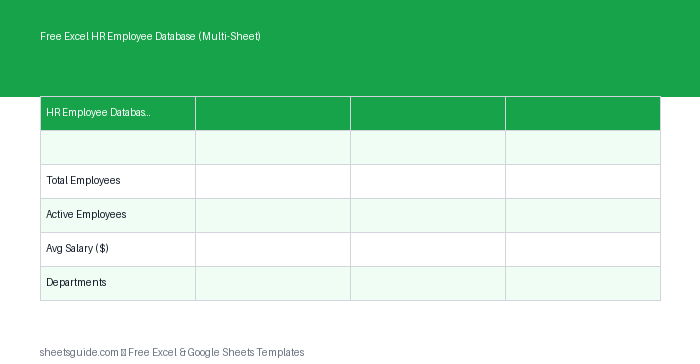
This multi-sheet Excel template is built to give you both detailed records and high-level insights. It includes three key sheets:
- Employee Data: The main database where all employee records are stored
- Summary: A quick overview of employee counts and key metrics
- Department Reports: Breakdown of employees by department
Each employee record is structured with the following columns:
- ID
- Name
- Department
- Title
- Start Date
- Salary
- Status
Why Use a Multi-Sheet HR Database?
A single spreadsheet can get cluttered quickly. By splitting data into multiple sheets, this Excel template helps you:
- Keep raw data separate from reports
- Reduce errors when analyzing information
- Quickly access summaries without filtering manually
- Improve clarity for HR teams and managers
This structure is especially useful if multiple people need to view or update employee records.
Key Features and Benefits
1. Centralized Employee Records
The Employee Data sheet acts as your single source of truth. Instead of scattered files or documents, everything lives in one place.
2. Easy Department Tracking
With the Department Reports sheet, you can quickly see how your workforce is distributed. This is useful for planning, budgeting, and identifying staffing gaps.
3. Instant Overview with Summary Sheet
The Summary sheet provides a snapshot of your organization, helping you understand total headcount and status distribution at a glance.
4. Flexible and Customizable
You can easily add new columns such as email, phone number, or manager name. The template is designed to adapt to your workflow.
5. Works Across Platforms
While built as an Excel template, it also works smoothly in Google Sheets, making collaboration and sharing simple.
How to Use in Excel
- Download and open the file: Open the Excel template on your computer using Microsoft Excel.
- Start with the Employee Data sheet: Enter each employee’s details row by row using the predefined columns.
- Assign unique IDs: Ensure each employee has a unique ID to avoid confusion or duplication.
- Use consistent formatting: Keep department names and job titles consistent to ensure accurate reporting.
- Update employee status: Use the Status column to track active, inactive, or terminated employees.
- Review the Summary sheet: Check this sheet to see overall workforce metrics automatically reflected.
- Analyze Department Reports: Use this sheet to understand team distribution and make informed HR decisions.
- Keep data updated regularly: Make it a habit to update records whenever there are changes in hiring, roles, or salaries.
The same structure and workflow can be used if you choose to open the file in Google Sheets.
Practical Use Cases
Small Business HR Management
If you don’t have a dedicated HR system, this Excel template provides a reliable alternative. You can manage hiring, track employee details, and maintain compliance records in one place.
Startup Team Tracking
Startups often scale quickly. This template helps you stay organized as new employees join, ensuring no data is lost during growth phases.
Department Planning
Managers can use the Department Reports sheet to evaluate team size and structure. This is especially useful when planning expansions or restructuring.
Payroll Preparation
While not a full payroll system, the Salary column allows you to maintain a basic overview of compensation, which can support payroll processes.
Employee Status Monitoring
Tracking whether employees are active or inactive helps maintain accurate records and supports reporting requirements.
Tips for Getting the Most Out of This Template
- Use data validation: Add dropdown lists for Department or Status to reduce errors
- Apply filters: Quickly find employees by department, title, or status
- Freeze header rows: Keep column headings visible as your dataset grows
- Sort regularly: Organize data by start date or department for better visibility
- Backup your file: Save copies regularly to prevent data loss
Common Mistakes to Avoid
- Inconsistent naming: Variations in department names can break reporting
- Duplicate IDs: Always ensure each employee has a unique identifier
- Missing updates: Outdated data reduces the accuracy of your reports
- Overcomplicating the file: Keep it simple and only add fields you truly need
Who This Excel Template Is For
This template is ideal for:
- Small business owners
- HR professionals
- Startup founders
- Office managers
- Anyone responsible for employee record keeping
If you need a straightforward way to manage employee data without investing in complex software, this Excel template is a practical and effective solution.
Final Thoughts
Managing employee data doesn’t have to be complicated. With this Excel template, you get a structured, easy-to-use system that keeps everything organized across multiple sheets. From detailed records to high-level summaries, it covers the essentials of HR data management.
Because it also works in Google Sheets, you can collaborate with your team and access your data from anywhere. Whether you’re just starting out or looking to streamline your current process, this template gives you a solid foundation for managing your workforce.
Download the template, customize it to your needs, and take control of your HR data today.