
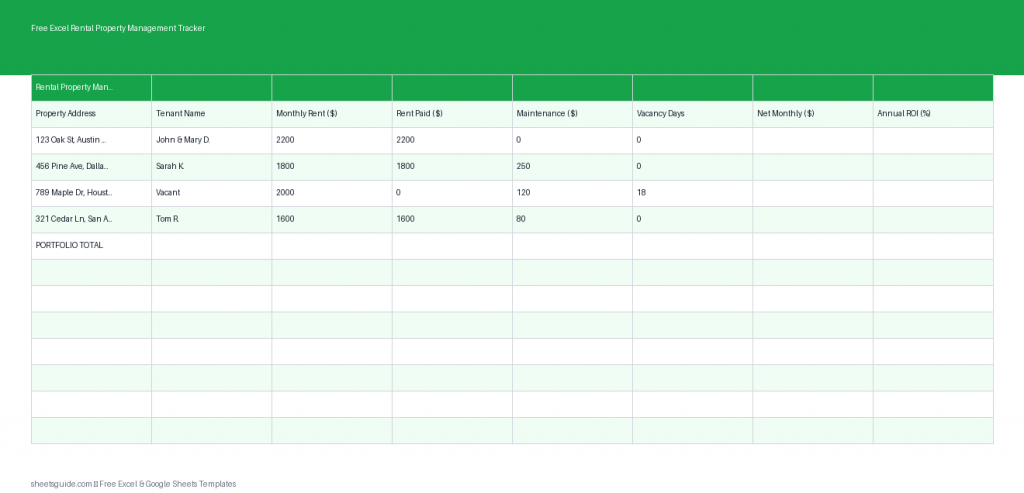
Managing rental properties can quickly become overwhelming, especially when you’re juggling multiple tenants, tracking payments, handling maintenance, and trying to understand your actual return on investment. This free Excel template is designed to simplify all of that. With one organized spreadsheet, you can track rent collection, maintenance costs, vacancy days, and annual ROI across multiple properties—without needing expensive software.
Built for Excel first and fully compatible with Google Sheets, this template gives landlords and property managers a clear, practical way to stay on top of their finances and operations.
What This Excel Template Tracks
This rental property management Excel template includes the following key columns:
- Property – Identify each rental unit or property
- Tenant – Keep track of who occupies each unit
- Monthly Rent – Record expected rental income
- Paid – Mark whether rent has been received
- Maintenance – Track repair and upkeep costs
- Vacancy Days – Monitor downtime between tenants
- Annual ROI – Measure profitability over time
These columns work together to give you a full picture of your rental portfolio, helping you make smarter financial decisions and identify areas for improvement.
Why Use an Excel Template for Rental Management?
Many landlords start with scattered notes, emails, or basic spreadsheets that don’t scale. This Excel template provides structure without complexity. Here’s why it works so well:
- Centralized data – Keep all properties and tenants in one place
- Clear financial tracking – See income and expenses at a glance
- Better decision-making – Use ROI insights to evaluate performance
- No subscription required – A free, reusable solution
- Flexible and customizable – Adjust columns or formulas to fit your needs
Whether you own a single rental or manage a growing portfolio, this template scales with you.
How to Use This Excel Template Effectively
To get the most value from this tool, consistency is key. Here’s how to approach each section in a practical way:
1. Add Your Properties
Start by listing each property or unit in the Property column. Use clear, consistent naming (e.g., “Maple St – Unit A” or “Downtown Condo 3B”). This makes filtering and sorting much easier later.
2. Track Tenant Information
Enter the current tenant’s name for each property. When tenants change, update this field so your records stay accurate. This also helps you quickly identify who is responsible for each unit.
3. Record Monthly Rent
Input the agreed monthly rent amount. Keeping this consistent allows you to quickly compare expected income versus actual performance.
4. Monitor Rent Payments
Use the Paid column to mark whether rent has been received. You can use simple entries like “Yes/No” or “Paid/Pending.” This gives you an immediate overview of cash flow and highlights any missed payments.
5. Log Maintenance Costs
Every repair, service call, or upgrade should be recorded in the Maintenance column. Even small expenses add up over time, and tracking them helps you understand the true cost of each property.
6. Track Vacancy Periods
Enter the number of days a property sits vacant between tenants. High vacancy days can significantly impact profitability, so this metric is critical for identifying underperforming units.
7. Review Annual ROI
The Annual ROI column helps you evaluate how well each property is performing financially. Use this to compare properties and decide where to invest more—or where to make changes.
How to Use in Excel
- Download and open the Excel template in Microsoft Excel.
- Enter your property and tenant data into the appropriate columns.
- Customize formatting or add filters to organize your view.
- Use Excel formulas (if included) or add your own to calculate totals and ROI.
- Update the sheet regularly—weekly or monthly—to keep your data accurate.
- Use sorting and filtering tools to analyze performance by property, tenant, or payment status.
This Excel template is also fully compatible with Google Sheets, so you can upload and edit it there if you prefer cloud-based access and sharing.
Practical Tips for Better Rental Tracking
Using the template is just the start. These practical habits will help you get more value from it:
- Update frequently – Don’t wait until the end of the month; log data as it happens
- Standardize entries – Use consistent labels like “Paid” or “Pending” to avoid confusion
- Review monthly – Set aside time to analyze income, expenses, and vacancies
- Flag issues early – Identify late payments or rising maintenance costs quickly
- Compare properties – Use ROI data to see which properties perform best
Who This Excel Template Is For
This rental property management Excel template is ideal for:
- Individual landlords managing one or more properties
- Real estate investors tracking portfolio performance
- Property managers handling multiple tenants
- Anyone looking for a simple, cost-effective tracking system
You don’t need advanced Excel skills to use this template—it’s designed to be straightforward while still giving you meaningful insights.
Customize It to Fit Your Workflow
One of the biggest advantages of using an Excel template is flexibility. You can easily tailor it to your needs. For example:
- Add a column for lease start and end dates
- Include a security deposit tracker
- Create a notes column for tenant communication
- Add formulas for total income and expenses
As your rental business grows, your spreadsheet can grow with it.
Final Thoughts
Staying organized is one of the most important parts of successful property management. This free Excel template gives you a clear, practical way to track rent, expenses, vacancies, and ROI—all in one place. By using it consistently, you’ll gain better visibility into your rental business and make more informed decisions.
Whether you’re just getting started or already managing multiple properties, this Excel template offers a simple, reliable system that works in both Excel and Google Sheets. Download it, customize it, and start managing your rentals with more confidence and control.