
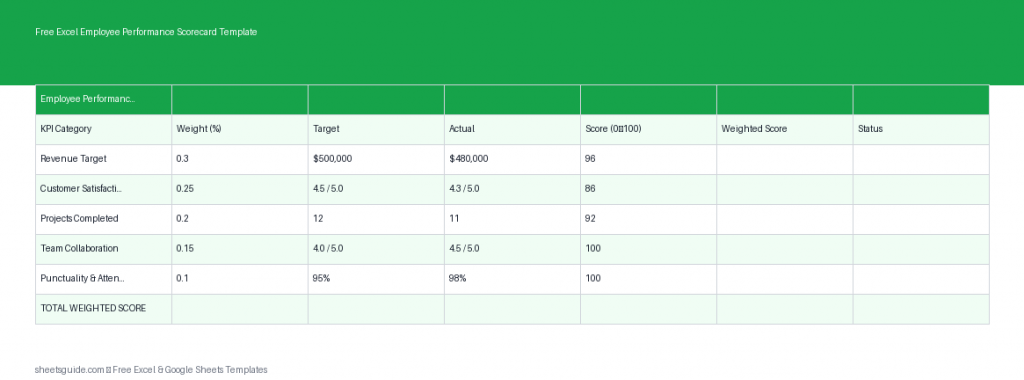
Managing employee performance can quickly become messy without a clear structure. This Excel template is designed to simplify performance tracking using measurable KPIs, weighted scoring, and automatic calculations. Whether you’re running a small team or managing multiple departments, this tool helps you evaluate employees consistently and fairly.
The template works seamlessly in Excel and is also compatible with Google Sheets, giving you flexibility across platforms while keeping Excel as the primary experience.
What This Excel Template Does
This Employee Performance Scorecard Excel template helps you:
- Track performance across multiple KPIs
- Assign importance using weighted scoring
- Compare targets vs actual results
- Automatically calculate scores and overall performance
- Create a consistent, repeatable evaluation process
Instead of relying on subjective evaluations, you get a structured system that turns performance into measurable data.
Template Structure Explained
The template includes the following columns:
- Employee: Name of the employee being evaluated
- KPI: The performance metric (e.g., Sales, Customer Satisfaction, Attendance)
- Weight: Importance of the KPI (percentage or decimal)
- Target: Expected performance level
- Actual: Employee’s actual performance
- Score: Automatically calculated ratio of actual vs target
- Weighted Score: Final contribution based on KPI weight
This structure ensures every performance metric contributes proportionally to the final evaluation.
Why Use a Weighted Scorecard?
Not all tasks are equally important. For example, closing sales might matter more than attending meetings. A weighted scorecard allows you to reflect this reality by assigning higher importance to critical KPIs.
Benefits include:
- More accurate performance evaluation
- Clear prioritization of business goals
- Reduced bias in reviews
- Better alignment between employee efforts and company objectives
How Scoring Works
The Excel template uses simple formulas to calculate performance:
- Score = Actual ÷ Target
- Weighted Score = Score × Weight
This means an employee who exceeds targets can score above 100%, while underperformance is reflected proportionally. The weighted score ensures that more important KPIs have a larger impact on the final result.
How to Use in Excel
- Enter Employee Names
List each employee in the Employee column. You can repeat names for multiple KPIs. - Define KPIs
Add measurable KPIs such as revenue, tasks completed, error rate, or customer feedback scores. - Assign Weights
Set a weight for each KPI based on its importance. Ensure the total weight per employee equals 100% (or 1.0). - Set Targets
Define clear, realistic targets for each KPI. - Input Actual Results
Enter real performance data for each KPI. - Review Automatic Scores
Let Excel calculate the score and weighted score automatically. - Analyze Results
Sum the weighted scores per employee to determine overall performance.
If you’re using Google Sheets, you can upload the same Excel template and it will function similarly, including formulas and calculations.
Practical Example
Let’s say you’re evaluating a sales employee:
- Sales Revenue (Weight: 50%)
- Customer Satisfaction (Weight: 30%)
- Attendance (Weight: 20%)
If the employee exceeds sales targets but has average attendance, the weighted scoring ensures that sales performance still has the biggest impact on the final score.
This approach gives you a balanced yet realistic performance picture.
Tips for Better Performance Tracking
- Use measurable KPIs: Avoid vague metrics like “teamwork” unless clearly defined
- Keep weights consistent: Standardize weights across similar roles
- Review regularly: Monthly or quarterly updates keep data relevant
- Document assumptions: Ensure everyone understands how scores are calculated
- Avoid overloading KPIs: Focus on 3–6 meaningful metrics per employee
Common Mistakes to Avoid
- Weights not adding up: This distorts final scores
- Unrealistic targets: Leads to misleading performance results
- Ignoring context: Numbers should be interpreted alongside real-world factors
- Overcomplicating KPIs: Keep the system simple and actionable
Who Should Use This Excel Template?
This Excel template is ideal for:
- HR professionals conducting performance reviews
- Managers tracking team productivity
- Business owners evaluating staff performance
- Team leads who want structured feedback systems
It works equally well for small teams and larger organizations because the structure is flexible and scalable.
Customize It for Your Needs
One of the biggest advantages of using an Excel template is flexibility. You can easily adapt this scorecard to fit your organization:
- Add more KPIs for detailed tracking
- Adjust weight distribution based on role
- Include additional columns like comments or review dates
- Create summary dashboards using pivot tables
You can also duplicate sheets for different departments or time periods, making it a powerful long-term tracking tool.
Final Thoughts
This Excel template provides a practical and structured way to evaluate employee performance using data instead of guesswork. By combining KPI tracking, weighted scoring, and automatic calculations, it helps you make more informed decisions and maintain fairness across evaluations.
Because it also works in Google Sheets, you can collaborate with your team easily while keeping Excel as your primary tool for setup and analysis.
If you’re looking for a simple but effective performance management system, this Employee Performance Scorecard Excel template is a solid starting point.